


DIY Block Pattern Maker
Design DIY block patterns free in your browser. No install — draw a flat pattern or stack it in 3D, convert photos to patterns, and count every color at once.
 What is a DIY block pattern?
DIY blocks are small colored blocks you snap onto a grid to build pictures or 3D models. MyBlockStudio’s editor brings that grid to your screen, where one cell equals one block. Draw flat pixel art in 2D or stack blocks in 3D, or upload a photo and it’s converted into a block pattern automatically — complete with a list of how many blocks of each color you need.

2D flat editor
Place colored blocks cell by cell to draw a flat pattern like pixel art. No size limit — whatever you draw becomes the pattern.

3D builder
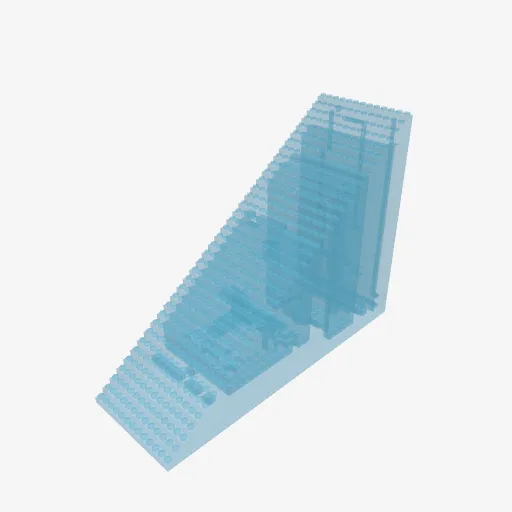
Stack blocks up, down and sideways into a 3D model. Spin the view to fill in the back too.

Photo → block pattern
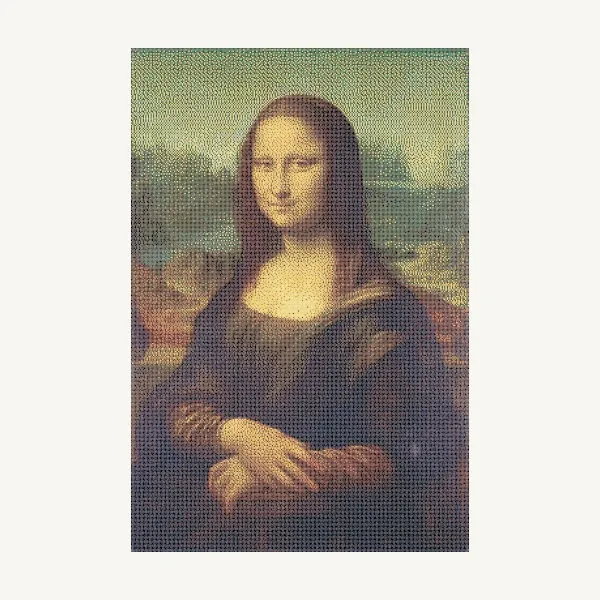
Upload a photo or drawing and it’s converted to a grid pattern matched to block colors.

Print, save and share
Print or save your finished pattern with color numbers and counts, or share it with a link.
 How to make a block pattern
-
1
Drawing a flat pattern (2D editor)
- There's no fixed canvas size. Click an empty spot and a block appears — whatever you draw becomes the pattern. If you run off the screen, grab the pan tool and move around as you keep drawing.
- Pick a color on the left and click to drop a block. Right-click (or the eraser on mobile) to remove one, and double-click a block to pick up its color. Use the magic wand to grab one color at once, or the select tool to move a group of cells.
- Placed one wrong? Undo as much as you like — nothing is permanent, so just play around.
-
2
Stacking in 3D (3D editor)
- The 3D editor builds by stacking blocks up, down or to the side. Click the floor or a face of a block, and a new one attaches to that side.
- Drag to spin the view around so you can fill in the back too. The magic wand and eraser are here as well, so fixing things is easy.
- You can stack up to 2,000,000 blocks, and once it's done you can save it and post it to the feed.
-
3
Turning a photo into a pattern
- Upload a photo or image in the image converter.
- Set the size and how many colors to use, and it redraws the photo in pixels within that. Fewer colors look simpler; more colors stay closer to the original.
- The result drops straight into the editor, so you can touch it up — usually just a few cells here and there.
-
4
Save · Advanced viewer · Share
Hit "Save Image" in the viewer to download the work image right away — no login needed. Open the "Advanced viewer" for a detailed sheet with color numbers and the count for each color, and follow it as you place the real blocks. Save your work to send it as a link or post it to the feed. (The advanced viewer, saving your work and sharing need an account.)
Block pattern gallery
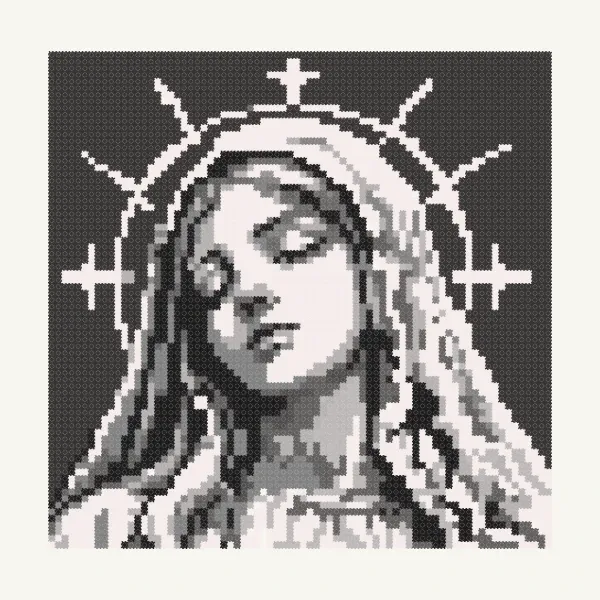
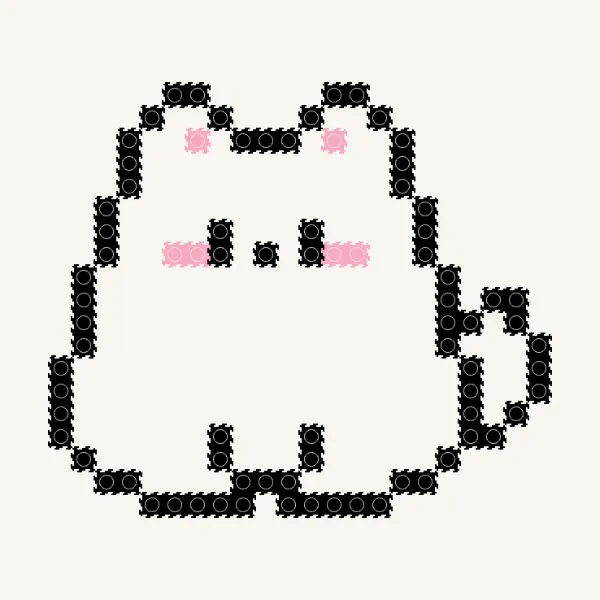
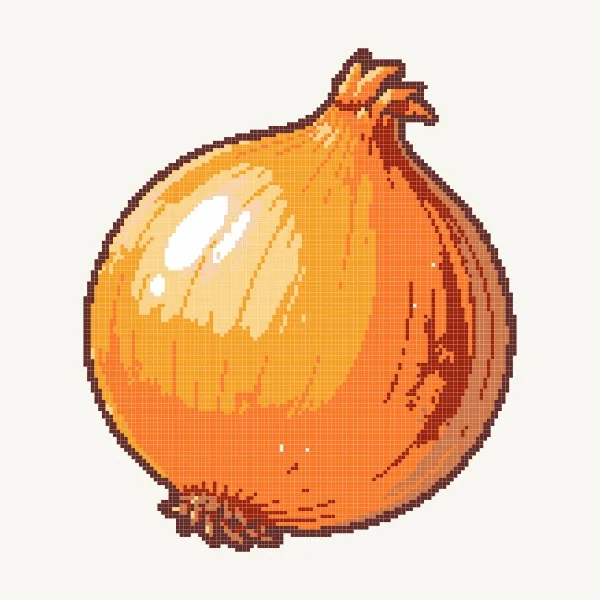
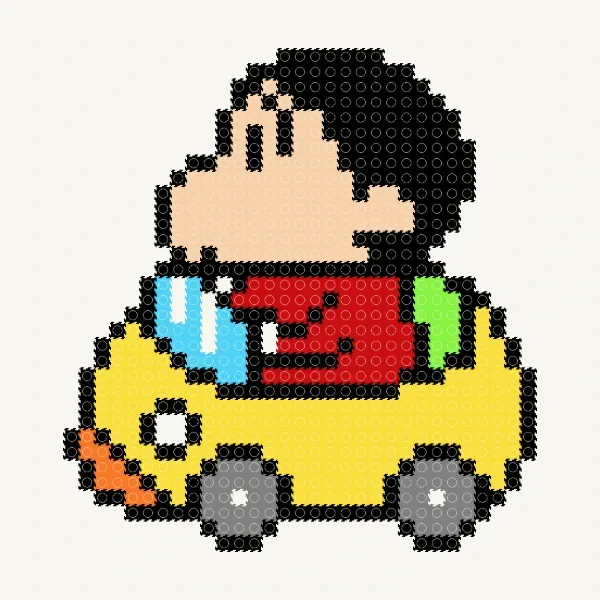
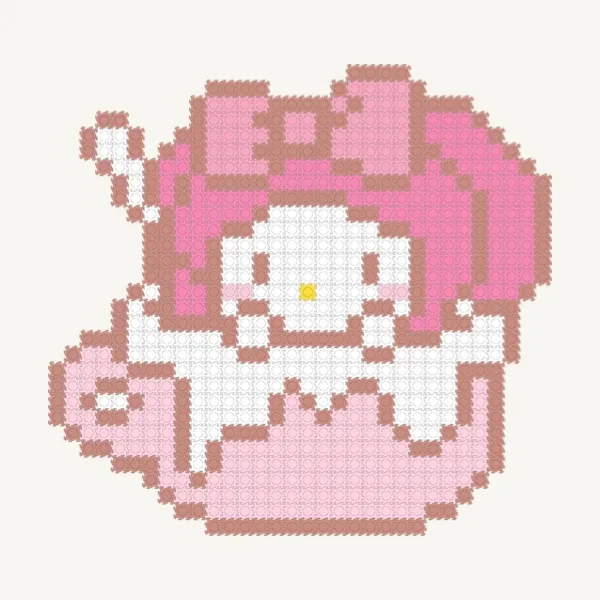
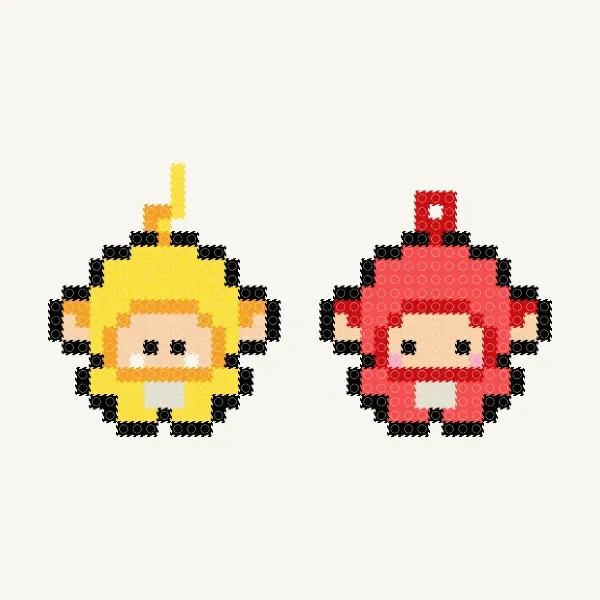
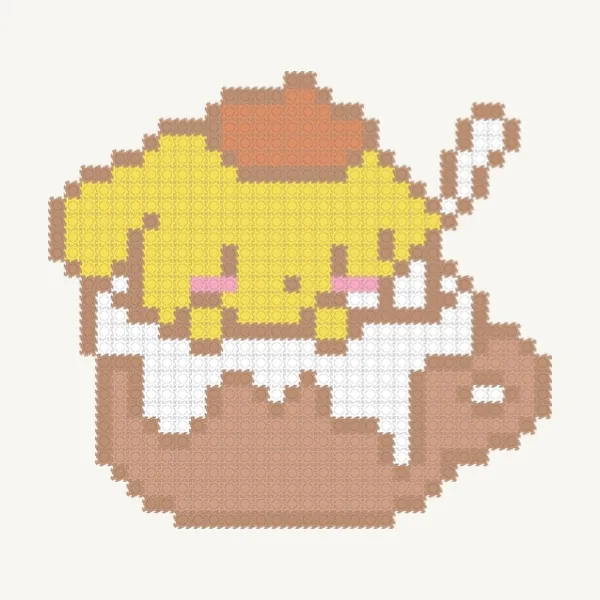
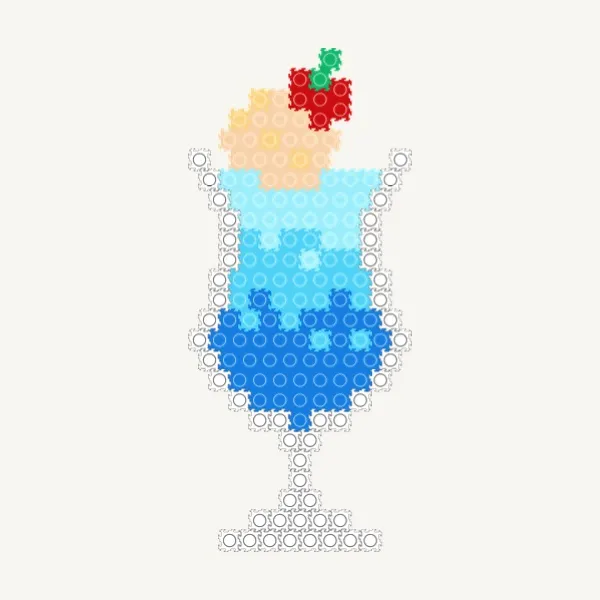
Browse DIY block patterns made by other people.


Frequently asked questions
What is MyBlockStudio?
MyBlockStudio is a free online tool for creating and sharing block designs and pixel art right in your browser. It features a 2D editor, 3D editor, and image conversion tool.
Is it free to use?
Yes — the 2D/3D editors, image converter, and even saving, printing and sharing are all completely free. There are no paid plans, premium upgrades, or hidden costs whatsoever.
How do I create a block design?
Simply place blocks in the editor to create your design. You can also upload a photo to automatically convert it. A tutorial will guide you on your first visit.
Make your own DIY block pattern now
Free, no install — start right in your browser.


 This website uses cookies
Comments